
Before selling an Android phone, check your transferred data, remove every Google account from the old device, and run the full factory data reset through Settings. Keep the phone until the reset finishes. If it asks for your previous account during setup, resolve that ownership check before handing it over.
This guide is based on Google and Samsung support instructions checked on November 17, 2026. Menu names vary by model and Android version. The steps below assume you own the phone and can open Settings.
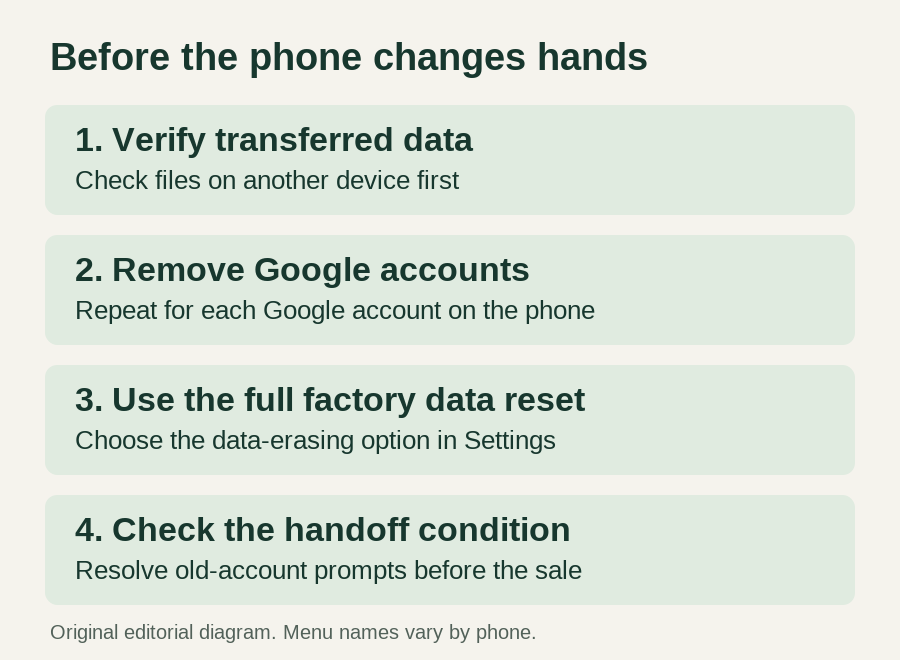
1. Check your data before removing accounts
A reset deletes data from the phone. Open your replacement device or another copy of your files and check the things you need, rather than relying on a transfer notification. Look at a recent photo, a document you saved locally, and any app data you expect to keep. If something is missing, sort out the transfer while the old phone still works.
Google's Android reset guide tells you to confirm your Google account password on another device and know the phone's screen-lock credentials. It also recommends charging the phone to at least 70% before a reset, which can take up to an hour.
Keep access to your accounts on another device before wiping the one you're selling. Don't schedule a handoff so tightly that you have to erase the only copy of something important.
2. Remove each Google account from the old phone
In Google's old-device instructions, account removal comes before the reset: open Settings, choose Passwords & accounts, select a Google account and choose Remove account. Repeat for each Google account on that phone. Your manufacturer may use a different name for the accounts menu.
Google says removing the Google account from the device turns off its device protection. That matters when you're transferring ownership: a protected phone can require credentials associated with its previous owner after a reset.
Do this yourself while you control the phone. A buyer shouldn't need your Google password or a verification code to make their purchase usable. If you can't unlock Settings or confirm the relevant account, pause the sale and use the manufacturer's support process.
3. Choose the full factory data reset
The word “reset” appears on several settings. Check the exact option before confirming it.
On a Pixel, Google specifies Settings for trade-ins: go to System > Reset options > Erase all data (factory reset), then follow the confirmation prompts. A PIN may be required. This erases the phone's internal storage. If your model's menus differ, use its current manufacturer instructions.
On a Samsung Galaxy, Samsung's reset instructions use Settings > General management > Reset > Factory data reset. Review the information, choose Reset, then Delete all. Follow the security prompts; a signed-in Samsung account can require its password, and Samsung says a network connection is needed to log out of that account.
Reset all settings is a different Galaxy option. Samsung says it leaves accounts, personal data and downloaded apps in place. A network-settings reset also leaves apps and data. Neither is the full data reset you need for this handoff.
Read the confirmation screen yourself. Don't let a similar menu label stand in for checking what will be erased.
4. Allow for password changes and ownership checks
If you recently reset your Google account password, Google tells you to wait 24 hours before performing a factory reset. That is a preparation requirement, not a promise that every account or setup problem will disappear after a day.
Using the phone's buttons or a remote erase as a shortcut can leave you facing an ownership check. Google's protection guide says a button reset may ask for the previous screen lock or an account previously on the device; a Find Hub reset requires associated Google account credentials.
For a Galaxy already asking for previous credentials, Samsung's device-protection guide directs owners who can't remember the account information to an authorized service center with proof of purchase. Resolve it through that route before completing the sale. Repeating resets isn't evidence that the account requirement has gone away.
5. Check the handoff condition before you let it go
Samsung says the phone returns to its initial setup screen after a factory data reset. Wait for that screen and note what you actually checked. A welcome screen is useful evidence that the reset finished; it doesn't establish every condition of the sale.
Keep your listing precise. “Factory data reset completed on [date]” describes an action you performed. If an old-account prompt remains, disclose that and postpone a normal ready-to-use handoff until it is resolved. Don't advertise a phone as ready for its next owner while expecting them to solve your account-access problem.
Deal separately with your physical SIM and any removable memory card before packing. For an eSIM, check the phone's reset screen and your carrier's transfer instructions instead of assuming the same option exists on every Android phone.
What if the phone won't open Settings?
Stop the handoff and use your model's official recovery or service instructions. Google provides other reset methods for devices that can't open Settings, but those methods can involve ownership verification. They shouldn't be treated as proof that a phone is ready to sell.
Does a reset remove everything you need to check for a sale?
No. It addresses data on the phone. Your sale still needs an accurate condition description, an agreed price and payment method, and any carrier or marketplace requirements that apply to the device.
Once the phone is prepared, compare places to sell used items and review the selling process in our Swappa overview. Check the chosen service's current rules before listing. A completed reset and an accepted listing are separate checks.