
For a personal Chromebook you own, save and check your files, sign out, then press Ctrl + Alt + Shift + r. Choose Restart, then Powerwash > Continue. Complete the reset before handoff. Leave account setup for the buyer: Google says the first account used after a reset becomes the owner account.
These instructions apply to an ordinary personal Chromebook. A school or work device needs its administrator's process. Google's factory-reset guide, checked November 17, 2026, is the source for the reset steps below.
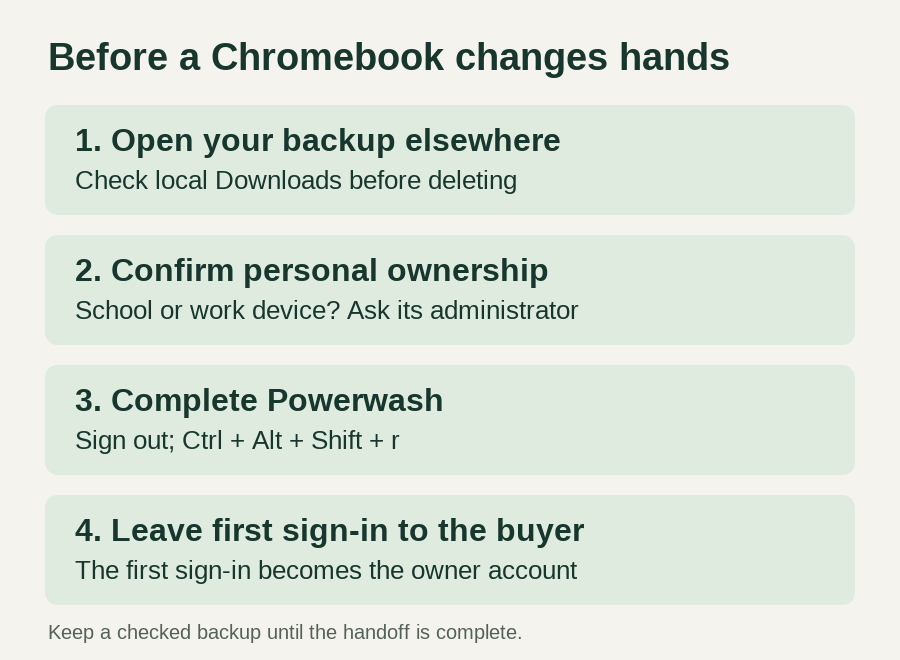
1. Check the copy you intend to keep
Factory reset deletes local user data, including Downloads, apps and settings. Back up before confirming it. Files already on Google Drive or external storage remain there.
Open the backup from another device. Pick a document you recently downloaded and a file you would struggle to replace. A folder name or a completed upload notification is a weaker check than opening the file you need.
For example, if you have a scanned document in Downloads and a second copy in Drive, open the Drive copy elsewhere before erasing the Chromebook. Keep the reset and the handoff separate in your schedule so a missing file doesn't become a last-minute decision.
2. Check whether the device belongs in a personal sale
Google directs people using a Chromebook at work or school to their administrator for a wipe and re-enrollment. This personal checklist cannot establish an organization's permission to sell its equipment.
If you are unsure who controls the device, settle that before taking payment. A device in your possession and a device you are authorized to transfer are different questions. Keep any ownership or purchase record with your sale paperwork; do not include account passwords in it.
3. Run Powerwash while you still control the Chromebook
Sign out. Hold Ctrl + Alt + Shift + r, select Restart, then choose Powerwash > Continue and follow the prompts.
Do the destructive step yourself after checking the backup. Don't ask a buyer to erase your files while your account is still accessible. Keep removable storage you intend to retain out of the package.
If the process stops or the machine still opens your session, postpone the handoff. Clicking a confirmation is an action; checking the resulting screen is the evidence you need before describing the reset as complete.
4. Leave the next owner's account choice to them
Google says the account used for the first sign-in after a reset becomes the owner account. For a sale, leave that sign-in for the buyer instead of adding your own account again to demonstrate the laptop.
Agree beforehand how the buyer will inspect condition and confirm setup. Describe what you actually checked: for example, “Powerwash completed on [date]; left at setup.” That statement is more useful than a broad claim that every possible account or hardware issue has been ruled out.
Does Powerwash delete files from Google Drive?
No. Google's reset guide distinguishes local data from Drive and external storage. Your backup is something to verify before the wipe, and something to retain afterward.
Is this the same process as selling a Windows laptop?
No. Chromebook ownership setup and Powerwash use different controls. Follow our Windows laptop reset guide for a Windows machine, or the Android phone sale checklist for a phone. Once your device is prepared, compare places to sell used items and check the chosen marketplace's current terms.