
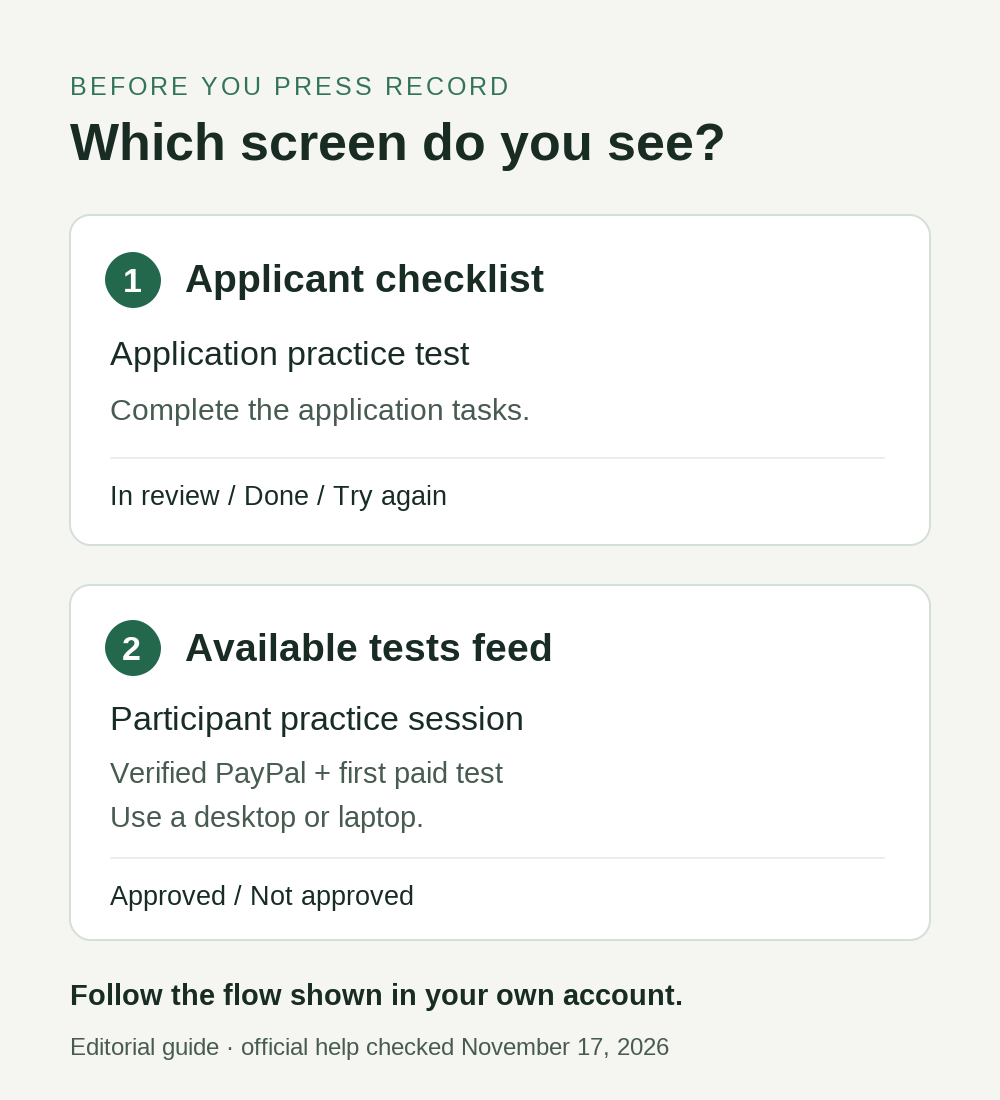
If UserTesting asks you to record a practice test, check where the request appears. An applicant checklist points to the application practice test. A Practice session card in Available tests follows a different participant flow. The preparation overlaps, but the entry requirements, review labels and waiting times differ.
Follow the instructions shown in your account. Don't assume a guide for the applicant checklist describes every newer dashboard.
Practice test or practice session? Start with the screen you see
UserTesting currently publishes two sets of instructions. Its Contributor Support applicant guide includes a practice test among the application tasks. Its Participant Support practice-session guide, updated October 22, 2026, describes a session offered after a verified PayPal connection and a first paid test.
That difference matters if you've already earned something and then see a request to practice. It can be the next step in your account's testing flow.
| What you see | Application practice test | Participant practice session |
|---|---|---|
| Where it starts | Applicant checklist | Available tests feed |
| When it appears | During the application | After connecting verified PayPal and completing a first paid test |
| Device instructions | Separate desktop and mobile guidance | Computer only |
| Successful review label | Done | Approved |
| Retry label | Try again | Not approved, with feedback |
The two flows aren't a pair of services you choose between. Use the one your account presents. The official pages don't establish that every member must complete both.
Before recording, make sure your voice will be captured
Set aside a quiet stretch of time before you press Start. For the application practice test, UserTesting recommends allowing about 10 minutes and completing it in one sitting. Its practice-session tips also advise leaving 10 minutes without interruptions.
Prepare in this order:
- Choose the right input device. If you have a laptop microphone, headset and webcam connected, check which microphone the computer is actually using. A headset being plugged in doesn't prove the browser selected it.
- Make a short recording and listen back. UserTesting's audio troubleshooting guide recommends speaking for at least 30 seconds in a test recording. Listen for silence, muffled words and distortion.
- Close distractions. Stop music, silence notifications and close apps that might be using the microphone or camera. Clear private messages and unrelated documents from the screen you will share.
- Follow the recording prompts. Allow the permissions requested by the specific recorder. For the participant practice session, the current guide explicitly requires microphone and camera access. Don't carry a camera assumption from a different test type into this one.
If the microphone level doesn't respond when you speak, fix the input or permission problem before continuing. Reading the instructions perfectly won't help if the recording has no usable sound.
How to take the application practice test on a computer
Start from Take practice test in your applicant checklist. According to UserTesting's desktop walkthrough, you'll grant screen and microphone access, watch the tutorial and review the reminders before recording.
Read the scenario carefully. It tells you the situation to imagine while you complete the tasks. The desktop guidance describes exploring UserTesting's support center; the purpose is to show how you work through a website and explain your thinking.
Keep the task instructions available. On a computer, the guidance explains that you switch between browser tabs. Return to the instruction tab when you need to check what the task actually asks. Guessing from memory can turn a small misunderstanding into a skipped task.
Work through the tasks in order, explaining your decisions as you go. If a label confuses you, say what you expected it to mean and what you try next. Confusion can produce useful feedback; a silent recording leaves the reviewer with much less to evaluate.
When you finish, complete the submission step and check the applicant checklist. In review means the application recording has been received. You can leave the checklist and monitor your email rather than taking the test again.
What useful thinking out loud sounds like
UserTesting's practice-test expectations ask you to explain what you're doing and why, while following the scenario. You don't need to perform an advertisement for the website. Describe the experience you're having.
Here's an invented example of useful narration on a shopping site:
I need to find the delivery cost before I choose a size. I'm opening Shipping because that looks more relevant than Returns. This page explains delivery speed, but I still can't see the price. I'll check whether there's a location selector further down.
This gives the listener your goal, the reason for your click and the information you're still missing. Compare that with a string of click descriptions: “I'm scrolling. I'm clicking. I'm going back.” Those words describe movement without explaining the decision.
Use your own observations. Don't memorize that example or read a prepared answer during a test. A task might ask for something entirely different, and a rehearsed speech can make you miss it.
If you get stuck, describe the obstacle, reread the task and explain the next reasonable action. Avoid filling the recording with unrelated stories simply to keep talking. The feedback should help someone understand the page and your response to it.
If your dashboard offers a practice session instead
The participant flow puts Practice session in the Available tests feed once its prerequisites are met. It requires a desktop or laptop. A phone or tablet won't complete this particular session.
Watch the introductory video, allow the requested recording access and follow the taskbar. The session checks whether you can explain your thoughts while carrying out tasks. Passing opens access to more test opportunities; it doesn't establish a fixed number of future invitations or earnings.
After submission, check the Home page for the result. The participant guide says review usually takes four days. Still in review can appear after that point when submissions are taking longer. Approved means you've passed; Not approved comes with feedback and an opportunity to try again.
Don't apply the applicant checklist's Done label to this flow. Look for the status used on the page in front of you.
How long does the application practice-test review take?
UserTesting's published estimates vary. The desktop walkthrough mentions a couple of days, while the dedicated practice-test status page says about a week and warns that higher application volume can extend that wait. Treat those as estimates, not a promised approval date.
For the applicant checklist, the status definitions are:
- In review: the application is waiting for review.
- Done: the practice test has passed.
- Try again: the recording needs another attempt.
While waiting, check the other checklist items: email confirmation, profile and PayPal setup. A completed practice-test tile doesn't mean every other account requirement is finished.
If you don't pass, follow the feedback attached to your account
Read the review message before recording again. Common problems listed by UserTesting include unclear audio, long silences, skipped instructions and poor recording quality. Pick the concrete problem to fix. Retaking a test with the same muted microphone repeats the same failure.
There is also a difference between UserTesting's published retry instructions. The November 3, 2026 Applicant FAQ says an unsuccessful applicant can try once more. An older reapplication article, updated in June 2024, says to resubmit when invited.
Use the retry control or instructions provided for your account. If your result offers no retry option, ask support to clarify the next step. Creating another account to manufacture an extra attempt won't resolve which rule applies to your existing application.
For a participant practice session marked Not approved, use its feedback and the retry route on that dashboard. Keep that separate from applicant reapplication advice.
Is the practice test paid?
The application practice test is unpaid. UserTesting's current Applicant FAQ makes that explicit. Its application-process page describes practice as a qualification step rather than a paid customer assignment.
Don't confuse completing a qualification with receiving a paid invitation. After access opens, individual tests still have their own requirements. Our paid research screeners guide explains why passing an initial application doesn't make you eligible for every later study.
For broader options beyond this particular application, compare the formats in our paid research studies guide. If you choose to continue with UserTesting, start with the card or checklist already shown in your account, confirm the recording works, and respond to the result attached to that submission.